People now ask ChatGPT, Gemini, Copilot, Claude and Perplexity for recommendations, and some of them click through to your site. You want to know how many, which pages they land on and whether they become leads. GA4 can show you, but only if the visits land in the right bucket.
In May 2026 Google added an AI Assistant channel to GA4's Default Channel Group. That helps, but it only catches the assistants on Google's own list, and you can't edit it. Perplexity, for example, isn't covered by default according to several analysts who tested it, so those visits still fall into Referral.
The fix is a custom channel group: a copy of the default channels where the AI Assistant channel also matches the AI sources you care about, sits near the top of the list, and becomes your primary channel group. This guide walks through every click with screenshots from our own GA4 property.
Quick answer
- Go to Admin > Data display > Channel groups and click Create new channel group.
- Name it (for example, Channels with AI). GA4 pre-fills it with the default channels, including AI Assistant.
- Open the AI Assistant channel, click Or, choose Source > partially matches regex and paste the regex below. Click Save channel.
- Click Reorder and drag AI Assistant above Referral (we put it second, right after Direct). Click Apply, then Save Group.
- Back on the Channel groups page, click the pencil on Primary channel group and pick your new group.
- Check Reports > Acquisition > Traffic acquisition: the report now uses Session primary channel group (your group).
Before you start
- Access: Editor role or higher on the GA4 property. Google requires Editor to create or edit channel groups.
- A free slot. Standard GA4 properties allow 2 custom channel groups (Analytics 360 allows 5), each with up to 50 channels. If both slots are taken, edit one of them instead of creating a new group.
- A working GA4 tag. If GA4 shows no data at all, start with our GA4 troubleshooting guide.
- Nothing to back up. A custom channel group doesn't change or delete your data. It only adds a new way to label sessions in reports.
- Time: about 20 minutes.
Why the default AI Assistant channel isn't enough
When GA4 sees a referrer it recognizes as an AI assistant, it sets the medium to ai-assistant and the campaign to (ai-assistant), and the session lands in the AI Assistant channel. Google's definition names ChatGPT, Gemini, Deepseek, Copilot and Grok as examples. It also says AI Overviews and AI Mode are not part of this channel; those clicks stay in Organic Search.
Anything outside Google's list keeps its usual classification, which for a link click is usually Referral. And because the default group is maintained by Google, you can't add sources to it. A custom group lets you keep Google's detection and add your own rule on top.
Step 1: Open Channel groups
Click the gear icon (Admin) at the bottom left. Under Property settings, open Data display and click Channel groups.
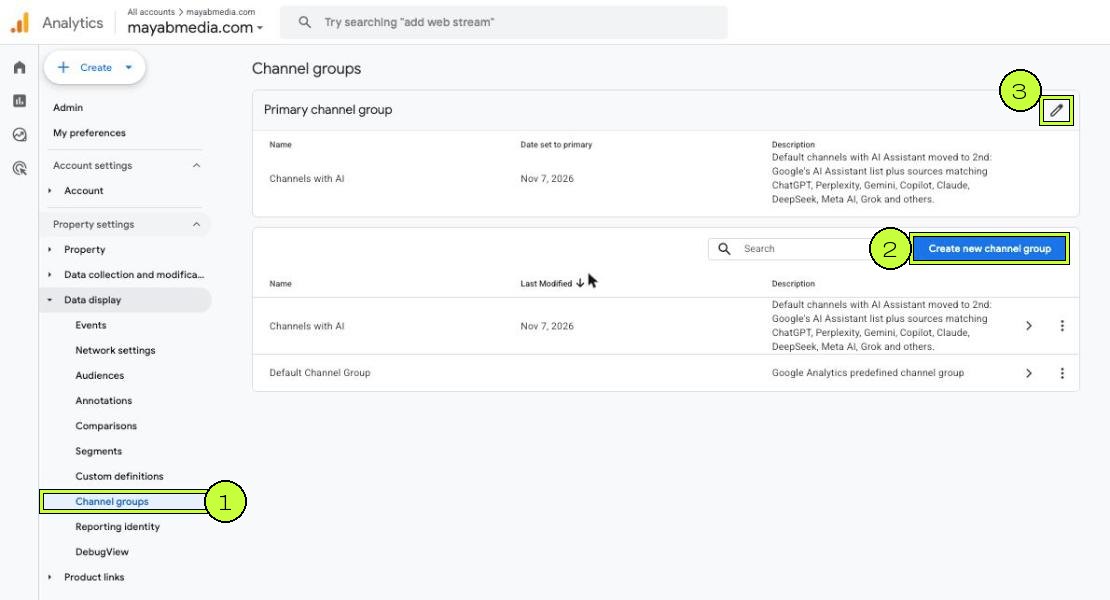
You'll see the Default Channel Group (Google's, read-only) and any custom groups. The top card shows which group is primary. On a new property that's simply a copy of the default.
Step 2: Create the new channel group
Click Create new channel group. Give it a clear name and a short description so your team knows what it does later. Names must be unique in the property.
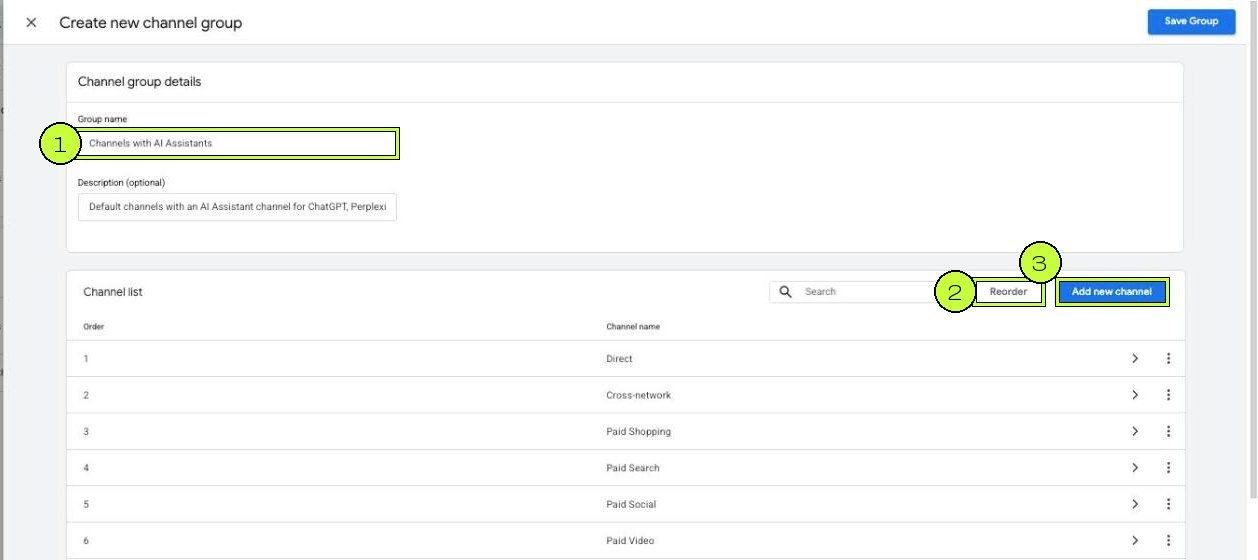
GA4 copies all the default channels into the new group, in Google's order, including AI Assistant. You don't need Add new channel for this setup. Editing the existing AI Assistant channel keeps Google's detection and avoids two AI channels competing for the same sessions.
Step 3: Open the AI Assistant channel
Scroll the channel list and click the arrow on AI Assistant. Its only condition is Default channel group matches exactly AI Assistant. That's the rule that reuses Google's own detection.
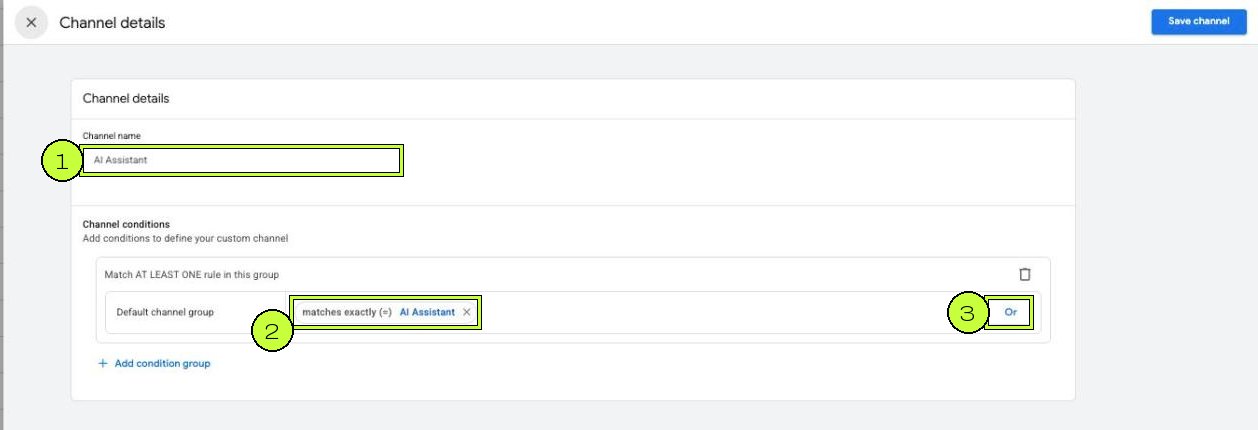
Leave the channel name as is. Click Or (3). An OR rule means a session matches the channel if it meets either condition.
Step 4: Add a Source rule with a regex
In the new row, open the dimension menu and pick Source.
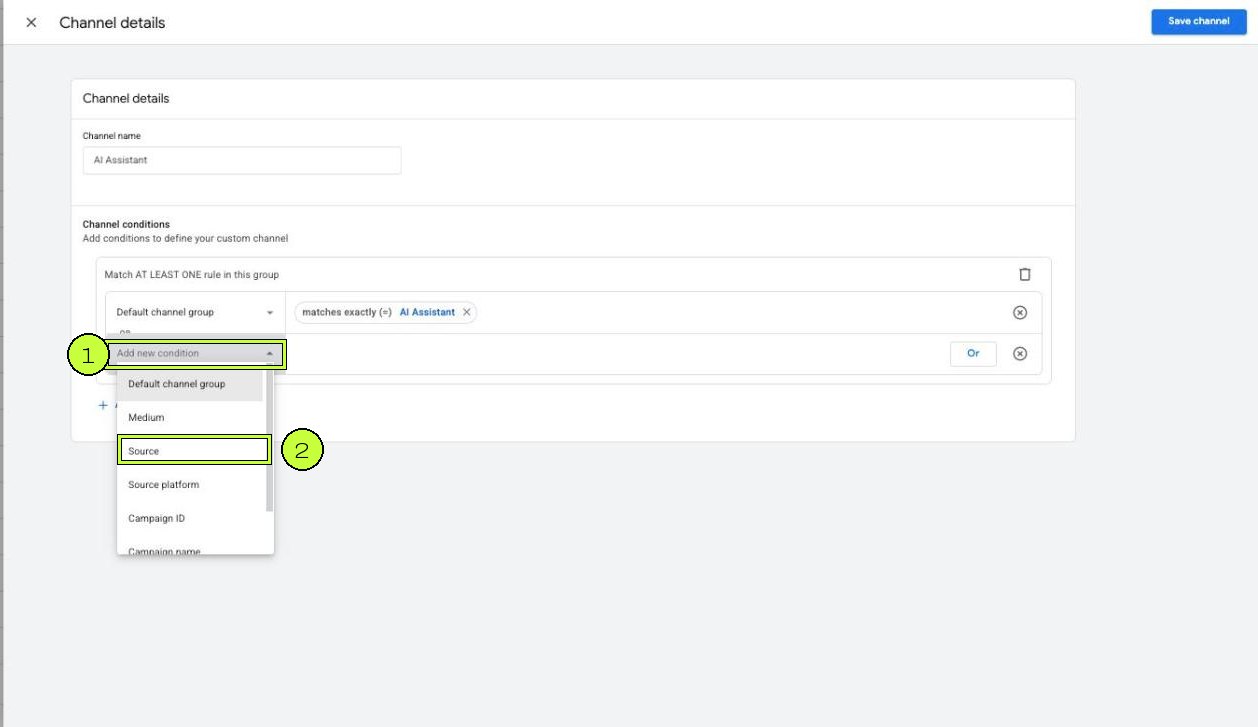
Then set the match type to partially matches regex and paste this pattern:
chatgpt|openai|perplexity|copilot\.microsoft|copilot\.com|edgeservices\.bing|gemini\.google|bard\.google|claude\.ai|anthropic|deepseek|meta\.ai|grok\.com|mistral\.ai|you\.com|poe\.com|phind\.com|kagi\.com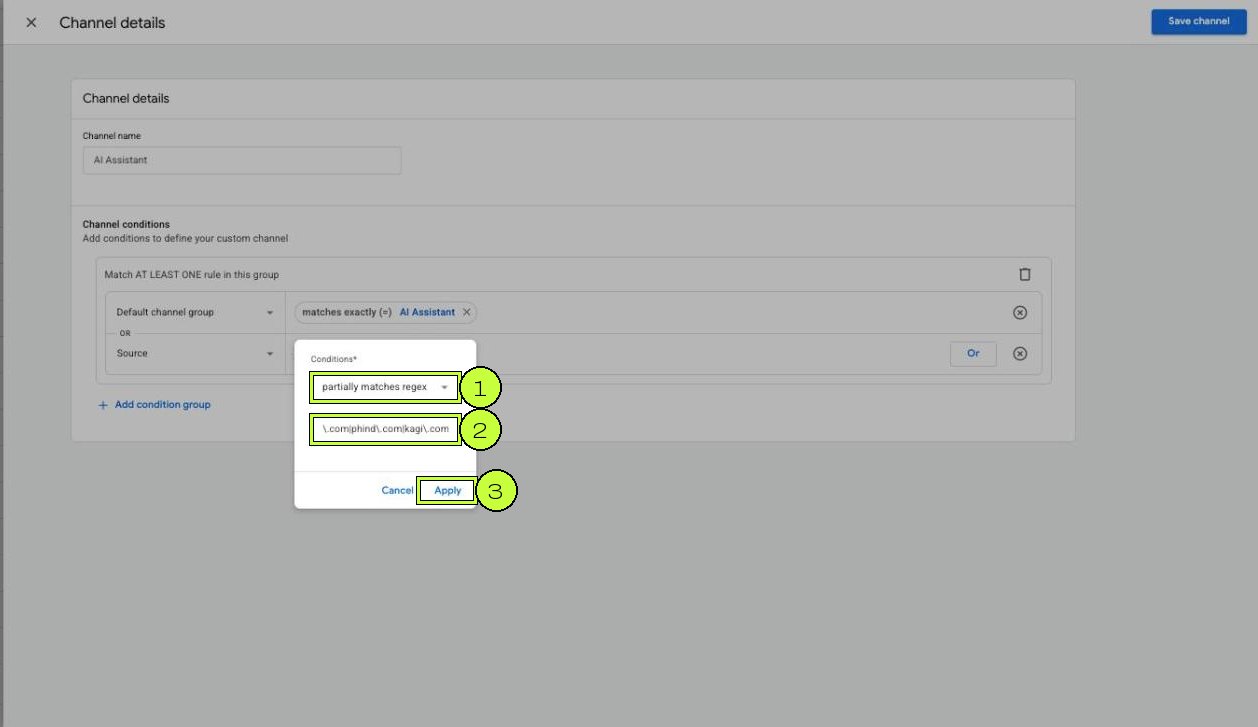
Click Apply. A few notes on the pattern:
- Partially matches means the source only has to contain one of the terms.
perplexitycatchesperplexity.aiandwww.perplexity.ai. - The backslash before a dot (
\.) means a literal dot. Without it, a dot matches any character. - Short terms are risky.
you\.comis fine, but a bareyouwould match YouTube. Keep each term specific. - Some entries, like
edgeservices\.bing, are referrers people report seeing from Copilot. Check your own Session source list and adjust. Remove anything you never see and add new tools as they show up.
Step 5: Save the channel
The AI Assistant channel now has two conditions joined by OR. Click Save channel at the top right.
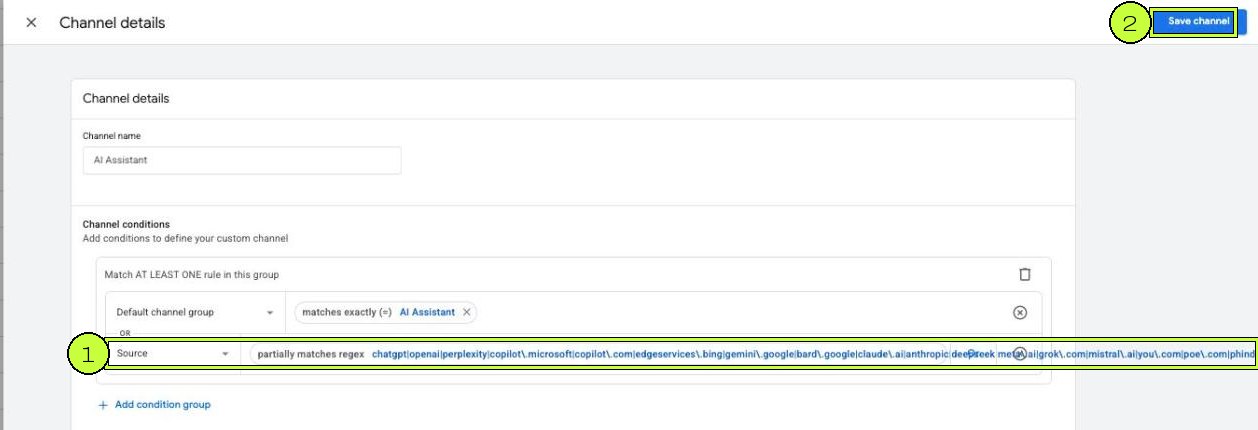
Saving the channel doesn't save the group yet. You still have to order the channels and save the group in the next step.
Step 6: Move AI Assistant above Referral
This is the step most people miss. GA4 checks channels from top to bottom and puts a session in the first channel it matches. If AI Assistant sits below Referral, a visit from perplexity.ai matches Referral first and never reaches your new rule.
Click Reorder. In the copied group, AI Assistant is the last channel in the list.
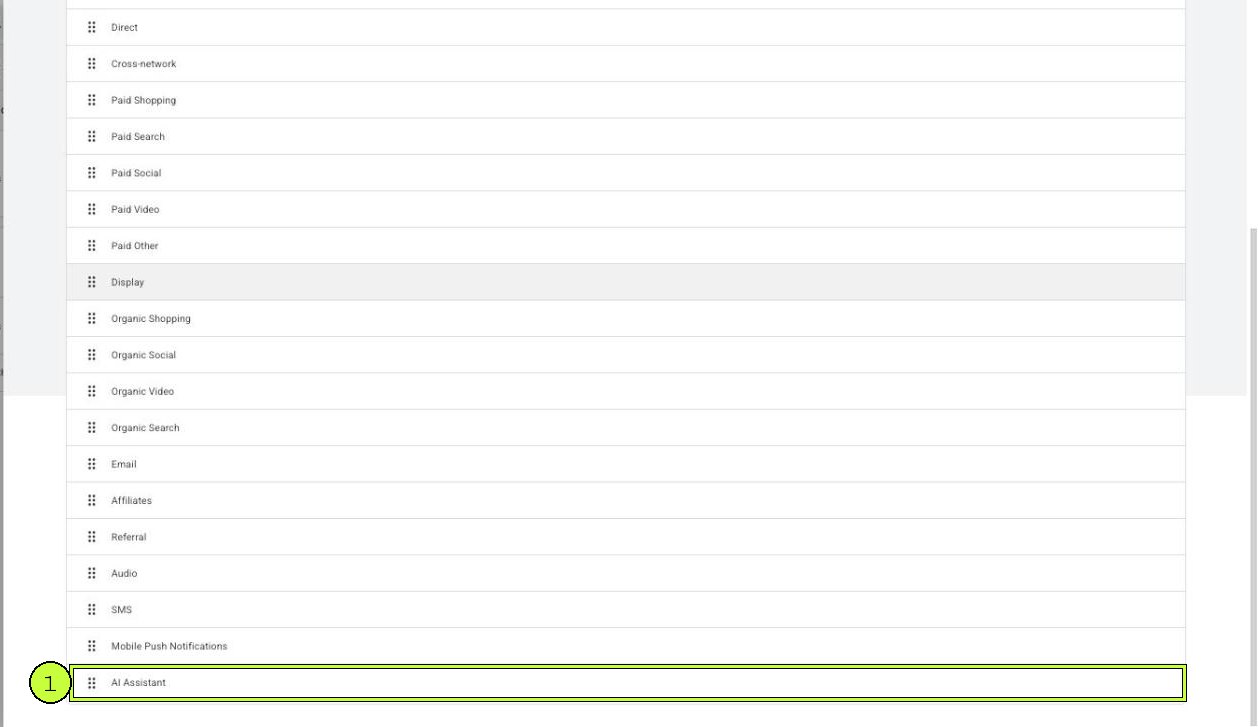
Drag it by the dotted handle to the top. We put it second, right below Direct, so it's checked before Cross-network, the paid channels, Organic Social, Organic Search and Referral.
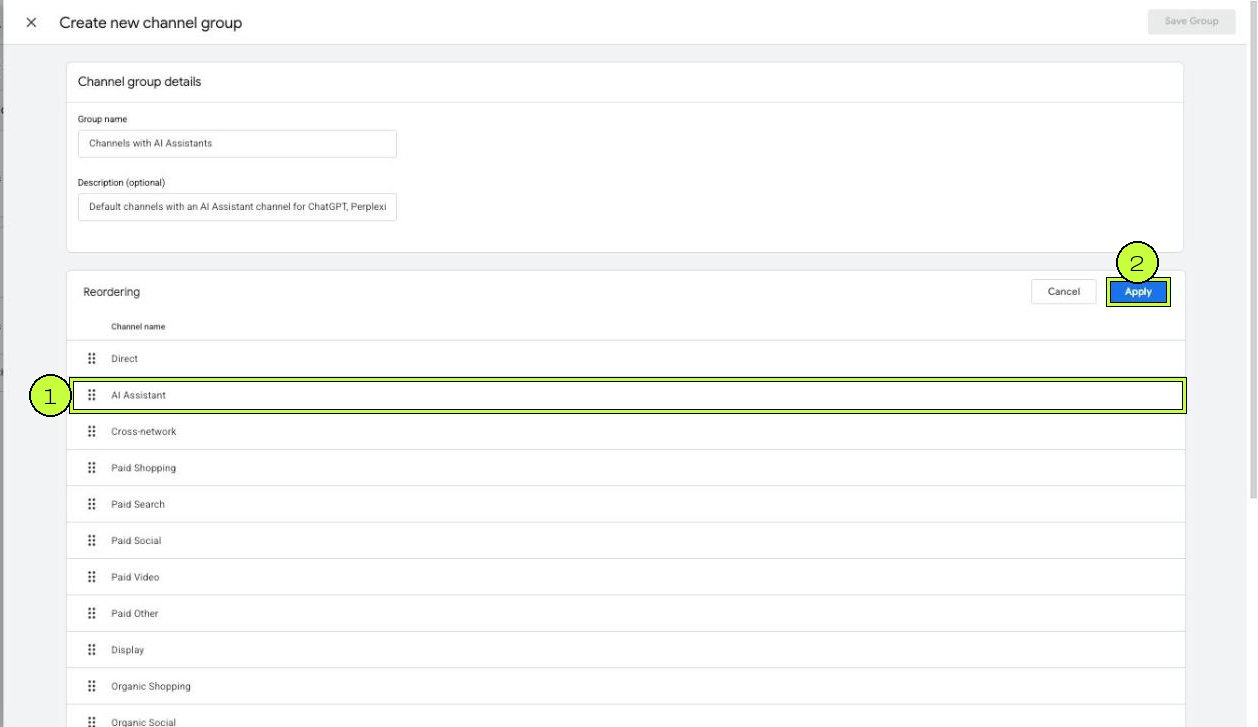
Why not first? It makes almost no difference, since a Direct session has no source to match. Keeping Direct first just mirrors Google's order. What matters is being above Referral and Organic Social.
Click Apply. The list now shows AI Assistant as channel 2. Click Save Group.
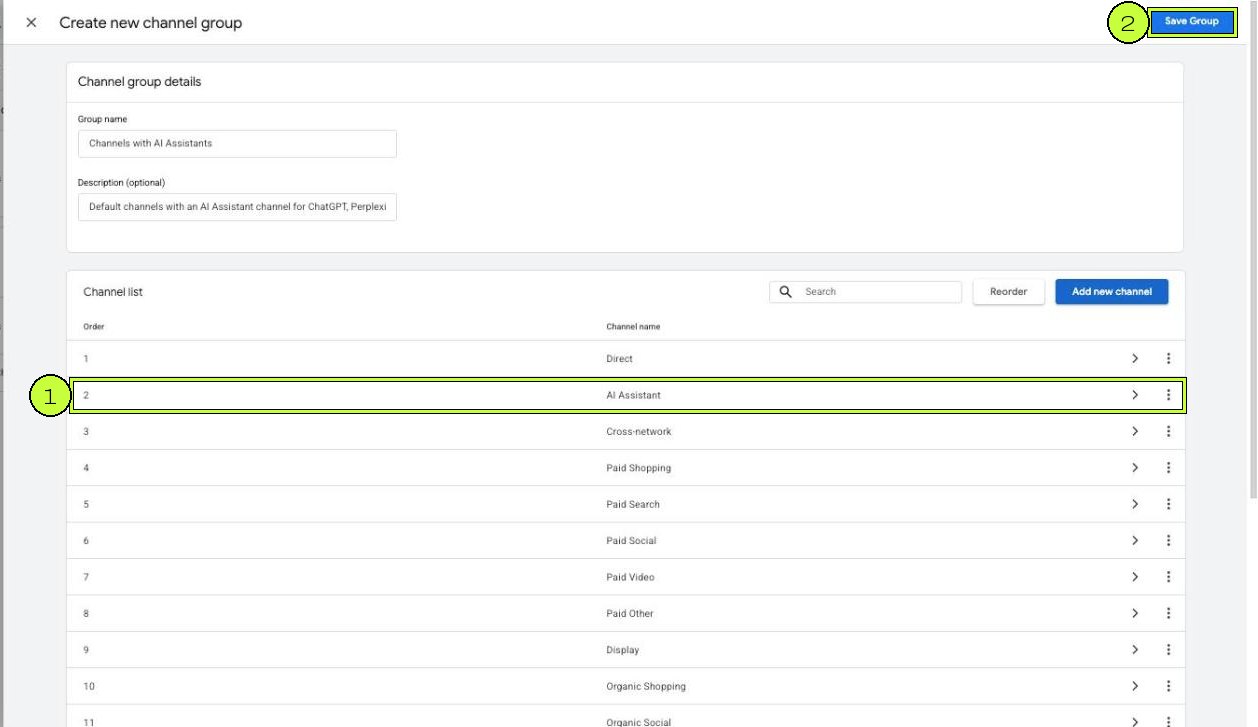
Step 7: Make it your primary channel group
A saved custom group is already usable in reports, but you have to pick it each time. To make it the default view, go back to Channel groups, click the pencil on the Primary channel group card (number 3 in the first screenshot) and select your new group. Save.
Know the trade-off before you do it:
- Primary is forward-only. Google says the primary channel group uses the new rules from the moment you set it. Older sessions keep the classification they had.
- The custom group itself is retroactive. If you pick the custom group as a dimension in a report or exploration, GA4 applies its rules to past data too. That's how you look back before the switch date.
- Audiences are forward-only. Changes to a channel group apply to audiences going forward only.
Add a GA4 annotation on the day you switch, so nobody reads the jump as a traffic change.
Step 8: Find AI traffic in your reports
Open Reports > Acquisition > Traffic acquisition. The title now reads Session primary channel group (your group name), and AI Assistant shows as its own row once you have sessions from those sources.
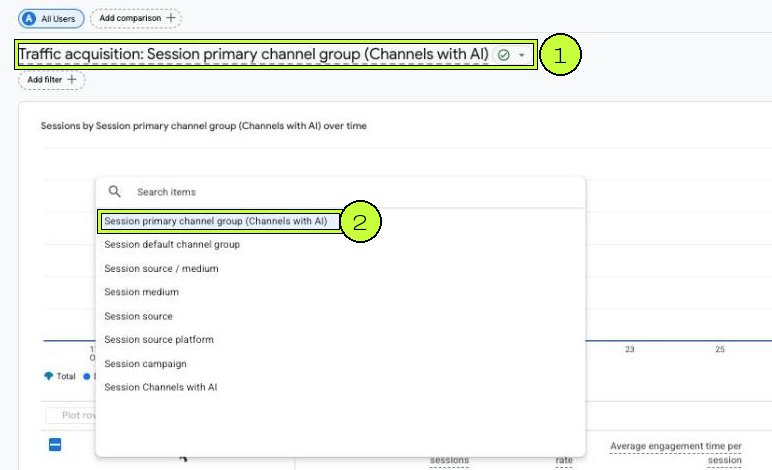
Three views worth saving:
- Which assistant sends traffic: filter the report to the AI Assistant channel and add Session source as a secondary dimension.
- Where they land: in Engagement > Landing page, add the channel group as a secondary dimension. These are the pages AI tools cite or recommend.
- Do they convert: compare the key event rate of AI Assistant against Organic Search. If key events aren't set up yet, follow our GA4 key events guide.
What this setup can't see
Be honest about the limits when you report these numbers:
- No referrer, no credit. Many AI apps and some browsers don't pass a referrer. Those visits show up as Direct. Treat the AI Assistant number as a floor, not the total.
- AI Overviews and AI Mode are Organic Search. Google counts clicks from its own AI features as organic. Search Console is the place to look at those.
- Copied links lose the source. If someone copies a URL from a chat and pastes it later, GA4 sees a direct visit.
- UTM tags win. Some tools add
utm_sourceto links (ChatGPT addsutm_source=chatgpt.comto many links). That still matches the regex, because the rule checks source. If you tag your own links, see our UTM guide so you don't mislabel them. - The list changes. New assistants appear and domains change. Review your Referral sources once a month and update the regex.
Common mistakes
- Adding a second AI channel instead of editing the existing one. You end up with two channels splitting the same visits.
- Leaving AI Assistant at the bottom. The regex is right, but Referral catches the sessions first.
- Using "matches regex" instead of "partially matches regex". Full match needs the regex to describe the whole source, so
perplexitywouldn't matchwww.perplexity.ai. - Forgetting Save Group. Save channel alone doesn't save anything if you close the panel.
- Expecting history to change after setting primary. Use the custom group dimension for past dates.
FAQ
Does GA4 track ChatGPT traffic by default now?
Yes, for the assistants on Google's list. Since May 2026, sessions with a recognized AI assistant referrer get the medium ai-assistant and the AI Assistant channel. A custom group adds the sources the default list misses.
Will this change my old data?
The primary channel group only changes from the day you set it. The custom group, used as a report dimension, applies to past data as well. Nothing is deleted either way.
Why is Perplexity still showing as Referral?
Either it isn't on Google's list for your property yet, or your AI Assistant channel sits below Referral in your custom group. Check the order first.
Can I edit the Default Channel Group instead?
No. Google maintains it and it's read-only. Custom channel groups are the supported way to change channel rules.
How many channel groups can I have?
Two custom groups on a standard property and five on Analytics 360, each with up to 50 channels, plus Google's default group.
Does this also track AI crawlers like GPTBot?
No. GA4 measures people who load your pages in a browser. Bots that read your site for AI answers don't run the GA4 tag, so you need server logs for those.
Stuck on this one? We fix these for clients every week. Book a free audit